Our Latest News

Unlocking Kid-Proof Features: Master Iphone'S Parental Controls To Keep Your Child Safe Online
Getting Started with Family Sharing
Feeling overwhelmed by the task of keeping your kids safe online? Apple’s iPhone offers several ingenious features designed to help you manage your child's digital experience. Before diving into these settings, the first step is to set up a Family Sharing group. This allows you to connect your child’s Apple account with yours, making it easier to monitor and control their device usage.
To start, navigate to Settings, tap on your name, select 'Family', and click 'Continue' to invite your child. Once that's done, you're ready to explore the extensive parental controls at your disposal.
Content Restrictions: Your First Defense
With Family Sharing in place, the first setting to explore is Content & Privacy Restrictions. This crucial feature allows you to set age-appropriate controls over what your child can see, buy, and download. To enable these restrictions, open the Settings app, tap on Screen Time, select your child's profile under Family, and proceed to Content & Privacy Restrictions. Enter your Screen Time passcode to activate the feature.
“This is a powerful tool for parents who want to keep a watchful eye on their child’s digital footprint while allowing them to explore safely,” Apple suggests.
The Content & Privacy Restrictions enable you to impose specific limits on app downloads, built-in features, and explicit content, as well as manage content ratings for various media. This way, you can ensure your child is only exposed to content that aligns with your family values.
Customize Limits and Blocks
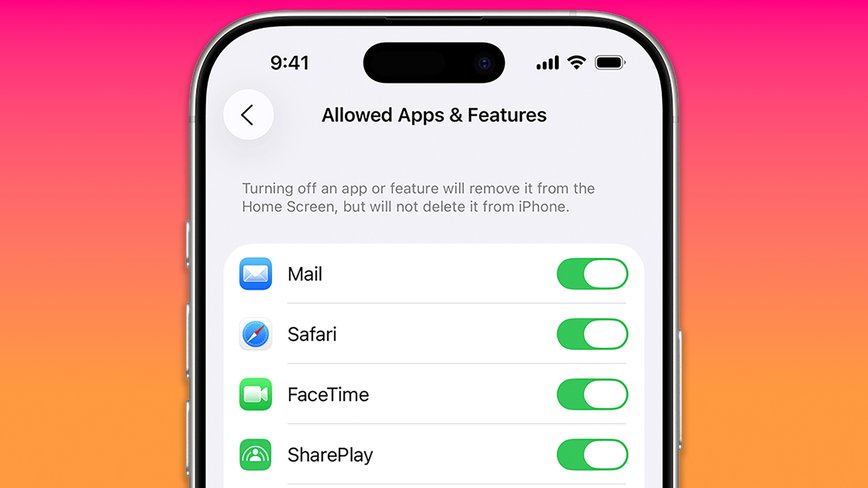
Next on the list is setting up tailored blocks and usage limits. Under the Screen Time settings, you’ll find options to prevent App Store purchases, restrict certain built-in apps and features, and control web content accessibility. You can also manage Game Center and Siri functionalities, as well as make adjustments to privacy settings.
These settings allow you to define app usage limits, including entire categories like games or social media. You can also set content ratings such as PG for movies or 9+ for apps, ensuring your child accesses age-suitable material. For internet safety, you can block adult sites or allow specific websites by adding them to an Always Allow list.
Enhancing Safety with Communication Controls
Another vital feature to activate is Communication Safety. Found under Screen Time in your child’s settings, this tool helps protect them from receiving or sending inappropriate images. If potentially explicit content is detected, the image will be blurred and a warning will appear, advising the child not to view or send it.
This feature empowers your child to handle such situations by offering options like messaging a trusted adult, exiting the chat, or blocking the contact. It also provides resources for online safety. For children under 13, Communication Safety encourages them to discuss any concerns with a parent or guardian.
By tapping into these iPhone settings, you can create a safer online environment for your child, giving you peace of mind as they navigate the digital world.
Categories:

Author: Nico

Nico
Trending topics
Popular